The loop you are running
Toll statements arrive. TollMatch matches every line to a GPS crossing and flags what does not fit. You do one of two things with each flag: dispute it with the agency, or fix the cause inside the fleet. Refunds come back on later statements and are tied to the original transaction; fixed causes show up as a smaller overpaid number the following month.
So there are two savings figures, and the dashboard keeps them apart:
- Toll refunded. Money the agency or your toll management provider credited back after a dispute. Summed on the overview from the refunds TollMatch recognizes on your statements.
- Tolls overpaid, month over month. The amount flagged each month. When pairings are fixed, dead tags are pulled and the right tag type goes in the truck, this number falls and stays down. That is the larger prize for most fleets, because it stops the leak rather than mopping it up.
Your job in the loop is to keep both moving: file what is disputable while the evidence is fresh, and clear the fleet-side causes so you dispute less next month.
Where things are in the dashboard
The dashboard opens on the homepage for the date range in the date filter. Use the preset ranges, a custom start and end, or a single day. If you have access to more than one fleet, the Fleets dropdown switches between them. Toll statements post weeks after travel, so a range that ends today is still filling in.
Homepage widgets
| Widget | What it shows |
|---|---|
| Cost overview | Total toll spend for the period, split between matched and mismatched tolls |
| Invoice overview | Count of transactions, matched against mismatched |
| Tolls overpaid breakdown | Three-level pie: fleet-side against agency-side mismatches, then mismatch types, then the agencies within a type. View invoices on any slice opens the Invoices table with that filter set |
| Cost trend and Transactions trend | Daily toll spend and daily count, each against the mismatched line, for the selected period |
| Map view | Every toll location on the map, pinned by match status: Rate Match, GPS + Rate Match, Mismatch |
| Cost overview by cost center | The cost overview split by cost center, where trip data is provided |
| Top units by mismatch | The units carrying the most mismatched toll, highest first |
Views
| View | What it shows | Use it for |
|---|---|---|
| Invoices | Every posted transaction as one row with its match status and mismatch status, in tabs: Matched, Mismatched (Disputable and Fleet Resolvable), Fleet Resolving, Fleet Resolved, Disputed, Refunded (including Partially Refunded), Denied, Non-Actionable. Search by transaction ID, unit ID, cost center or transponder ID; filter by match type; edit columns; export | Working findings one by one; filing disputes |
| Unit Summary and Unit Details | Per unit: total toll cost, expected toll cost, overpaid toll cost, mismatch percent, transactions without GPS percent; Unit Details adds the mismatch count by category. View details, View map, View notes and logs, export | Finding trucks that are overpaying or have lost GPS |
| Tag/Plate | The same summary per transponder or plate, with mismatch percent and transactions without GPS percent, plus Transponder Status | Tag health, misuse, pairing fixes |
| Off Policy Tolls | Per unit: total GPS toll, off-policy GPS toll and percent, total invoice toll, off-policy invoice toll and percent, with the off-policy zones drawn on the map | Driver route compliance; rebilling adjustments |
Every view exports as CSV for the selected range, sorts on any column, and lets you disable and enable columns; the column choice persists until you clear it.
Reading a transaction row
Each row is one posted transaction and everything TollMatch knows about it. Start with the match status, because it says what kind of evidence sits behind the row:
| Match status | Meaning |
|---|---|
| GPS + Rate Match | The charge matches the toll rules for that facility, class and time, and a GPS crossing by the paired unit confirms the passage. The strongest result |
| Rate Match | The charge matches the toll rules, but there is no GPS crossing to confirm the unit was there, usually because GPS was missing around that time. The amount is right; presence is not confirmed |
| Mismatch | The charge does not fit, and the mismatch type says why |
| Column | Meaning |
|---|---|
| Toll amount charged | What the agency or provider billed |
| Expected toll | What the crossing should have cost for this unit's class and payment method at that time, priced from the GPS reconstruction |
| Overpaid | Charged minus expected, where positive. A $40 charge against a $25 expected toll is a $15 overpayment, not a $40 one; the dashboard already does this arithmetic |
| Mismatch type | Which flag applies; see Mismatch types for all twelve |
| Mismatch status | Where the finding is in its life: Disputable, Disputed, Denied, Refunded or Partially Refunded, Non-Actionable on the agency side; Fleet Resolvable, Fleet Resolving, Fleet Resolved on the fleet side |
| Vehicle class, toll plaza, unit ID, transponder or plate, cost center, timestamp | The keys the match was made on and where the cost lands |
Row actions: View trip detail opens the reconstructed trip with every crossing on it; View map shows the GPS pings on the road with the toll points, so you can see how the trip actually happened; View notes and logs holds your notes, the feedback you have sent and the status history; Generate dispute report builds the evidence PDF; Report feedback tells us a finding looks wrong. For an Unassigned toll the row also shows the units GPS suggests the tag is riding in.
Working a finding to a dispute
Filter
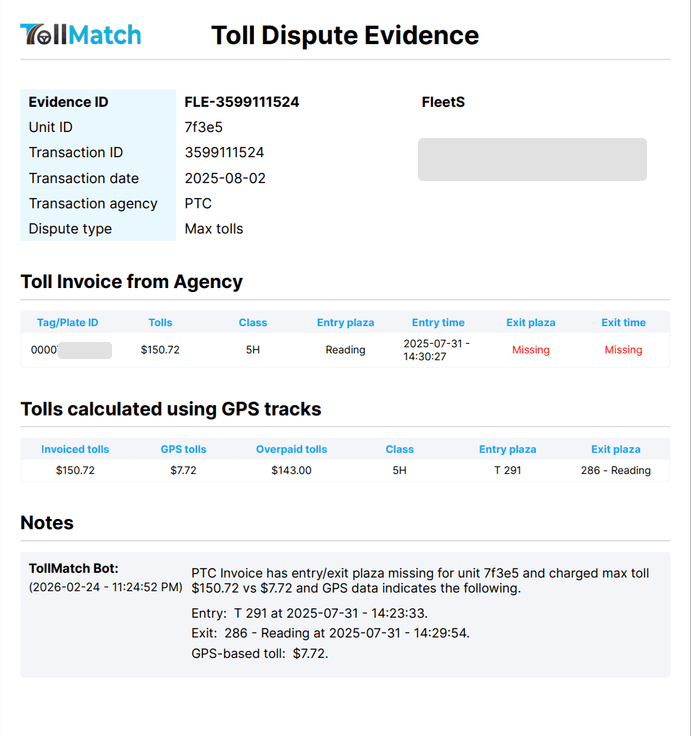
Invoices, Mismatched tab, set the date range and the match type filter: Max toll first, then Duplicate, Misclassification, Toll overpaid, Express lane overcharge, Violation. Note the transaction ID of the row you are working.
Check the evidence
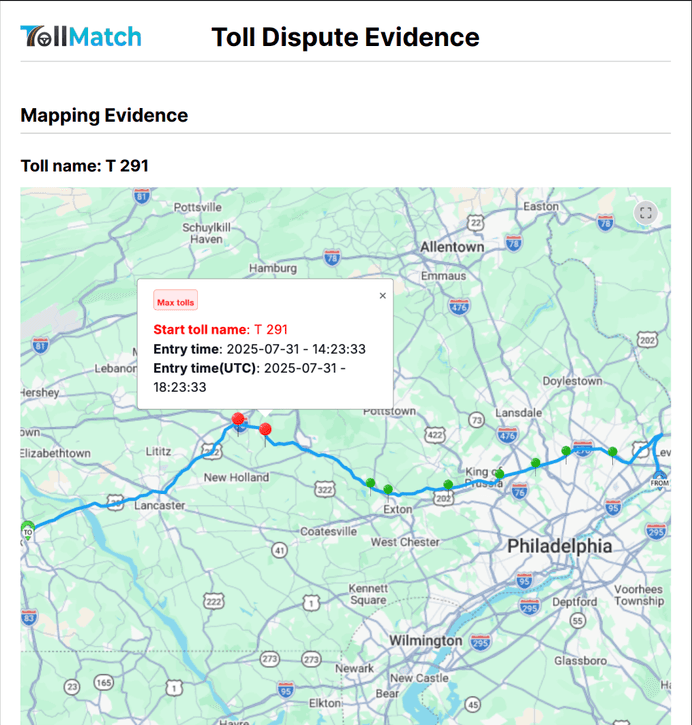
View trip detail, then View map. Confirm the truck was where the finding says: for a max toll, that GPS shows the real entry and exit; for a duplicate, that there is one crossing and two charges, not a return trip; for a misclassification, that the unit's class on adjacent crossings is lower than the one billed. Check the notes and logs for an earlier dispute or a credit already posted before you create more work.
Add a note
View notes and logs, add what the agency needs to know in one or two lines, and tick Enable for dispute so the note prints on the report.
Generate the dispute report
The report carries the GPS route, timestamped entry and exit, the billed and expected amounts, the unit, tag and plate, your notes, and your name and phone from your profile. It is the package the agency or your provider needs, in one file.
File it
Three ways, depending on the category and how your accounts are set up. Max tolls: Create request sends the dispute to your toll management provider from the dashboard, and where automatic disputes are switched on for your fleet these go without a click. Other categories: Email dispute report downloads the file and opens your mail client; attach it to the agency's dispute address or your provider's dispute form. Bulk: export the filtered table as CSV for your provider's batch dispute process. If your fleet holds its own agency accounts, you file with the agency directly; if a toll management provider holds them, the provider files on your behalf and you send the evidence to them.
Set the status
Change Disputable to Disputed; for a batch filed together, select the rows and edit the status in bulk. Generating or downloading the report does not file anything, so the status changes only when the dispute has actually gone. The row moves to the Disputed tab. When the credit posts on a later statement TollMatch recognizes it, ties it to this transaction and moves it to Refunded, or Partially Refunded with the percentage. If the agency declines, set Denied yourself and add the reason in the notes.
Recovered is what the agency credited, not what was charged and not what was requested. The open balance stays on the row for follow-up.
File as you go
Disputes filed weekly, while the trip is recent and the evidence is fresh, are resolved faster than a monthly batch. Most agencies refund maximum fares, duplicates and misclassifications when entry and exit are shown on GPS.
Statuses
Every mismatched transaction carries a status. Agency-side statuses track a dispute; fleet-side statuses track an internal fix. You set most of them; TollMatch sets Refunded when it sees the credit.
| Status | Meaning | Who sets it |
|---|---|---|
| Disputable | A mismatch that can be disputed with the agency for a refund | TollMatch |
| Disputed | You have filed it with the agency or your provider | You, or automatically when Create request or automatic disputes send it |
| Refunded, Partially Refunded | The agency credited it in full or in part; recognized from a later statement and tied to the original transaction, with the percentage refunded | TollMatch |
| Denied | The agency reviewed the dispute and declined | You |
| Non-actionable | Cannot be disputed and cannot be fixed inside the fleet, for example a non-optimal tag on a crossing already made | You, or TollMatch for categories that are never disputable |
| Fleet resolvable | The cause is inside the fleet: a broken or unmounted tag, a wrong pairing, a tag nobody has mapped | TollMatch |
| Fleet resolving | Someone is working it: finding the unit, moving the tag, updating the provider | You |
| Fleet resolved | Fixed; no further action. It records the fleet action, not a refund: the historical charge is recovered only if it is also disputed and credited | You |
Statuses can be edited one row at a time or in bulk for a selection. A bulk change should only carry a status every selected row has actually reached.
Fixing the fleet-side causes
Agency disputes recover money once. Fleet-side fixes stop the same money leaking every month. The dashboard tells you where to look; the fix usually happens at your toll management provider or in the truck.
| What the dashboard shows | What is usually going on | The fix |
|---|---|---|
| A tag reads in a unit other than the one it is assigned to (Misread, pairing recommendation) | The tag moved trucks and the provider's Vehicles list was not updated; GPS travel patterns show which truck it actually rides in | Accept the recommended pairing, update the provider, re-send the pairing export |
| Tolls on a tag or plate mapped to no unit (Unassigned toll) | A tag issued but never assigned, a sold or retired truck whose tag is still active, or a tag that is not yours | Assign it or deactivate it. Confirm the vehicle is still in service. Unassigned tolls cannot be allocated to a cost center until they are |
| Plate rate charged where a tag was present (Plate overcharge, Transponder unread) | Tag not mounted correctly, obscured, dead, or the plate is not registered with the agency | Check the mount, replace the tag, register the plate. Then dispute the difference where the agency allows |
| Two active tags billing in one unit (Potential misuse, Duplicate) | A new tag went in and the old one never came out, or tractor and trailer tags both read | Pull the old tag; decide whether trailer tags stay active |
| A tag billing with no truck under it (Potential misuse, high share of transactions without GPS) | The tag is in a personal vehicle, or is lost or stolen | Locate it or deactivate it with the provider immediately |
| A tag type that costs more where the truck runs (Non-optimal tag) | The truck's home-state tag pays a higher rate on the roads it uses most; the recommendation weighs toll spend and travel frequency per unit | Issue the better tag for high-volume lanes; decide whether managing two tag types is worth the spread |
Off-policy tolls
Your fleet sets off-policy zones: toll roads or areas your trucks should not be using. The Off Policy Tolls view then shows, per unit, the GPS toll and the invoiced toll incurred inside those zones and the share of the unit's total they represent, with the zones drawn on the map and the full trip on View details, so you can tell a reroute around a closure from a habit. Fleets use the view for driver feedback, for the express lane question below, and to adjust what gets rebilled to a customer when the toll was not part of the planned route. An off-policy toll is usually a correctly billed toll; the question it raises is operational, not a dispute.
Express lanes
Express lanes price dynamically. TollMatch checks each express lane charge against the rate in effect for the time of the crossing, and against GPS placing the truck in the express lane rather than the general-purpose lanes beside it. A charge above the rate window is an Express lane overcharge and is disputable; certain agencies refund these when the evidence is clear.
The policy question comes first, though. Express lanes are built for passenger traffic saving minutes, and the rates rarely make sense for a truck. Many fleets run a no-express-lane rule, or a no-reimbursement rule for express lane use. The Off-policy view and the express lane filter tell you how often it is happening and on which units.
The weekly and monthly review
Weekly, thirty minutes
- Tag/Plate view sorted by transactions without GPS percent. Anything new at the top gets located or deactivated today.
- Unit Summary, transactions without GPS percent. Any unit that has gone dark gets checked in the telematics portal.
- Invoices, Mismatched, match type Max toll. File everything new; set Disputed.
- Invoices, Mismatched, Duplicate and Misclassification. Same.
- Pairing recommendations. Accept, update the provider, re-send the export.
- Feedback on anything that looks wrong, from the row, so it reaches us with the transaction attached.
Monthly, for finance
- Toll refunded this month against disputes filed in prior months; what is still open and how old it is.
- Tolls overpaid by category, this month against the last three. The fleet-side categories should be falling. Read it next to transactions without GPS percent: a lower mismatch share with less GPS coverage is not an improvement, it is fewer findings we could prove.
- Unassigned tolls remaining, so cost center allocation is complete.
- Pairing and tag changes made, so the provider's records and yours agree.
Every table exports for the range you have selected, so the monthly numbers can go straight into your own reporting.
Cost centers and rebilling
When trip data is provided, the Cost overview by cost center widget splits toll spend by cost center, and each transaction carries the trip and cost center it belongs to, so audited tolls flow into your allocation with the overpaid and refunded amounts already separated. For per-trip toll calculation and customer rebilling from GPS, TollTally does that job on the same account and the same GPS feed; TollMatch audits what you were billed, TollTally tells you what each trip should be charged.