The short version
NavGuru works best when it knows more than where the truck is going: what truck is making the trip, how your fleet wants it routed, which system controls the job, and what your drivers and dispatchers need along the way. This page gets that environment ready, then takes you through a real-truck pilot, then through the first weeks of support.
What it does not take: new in-cab hardware, an implementation fee, or code written for one fleet. On Platform Science tablets the fleet asks Platform Science to enable NavGuru and deploys it to the trucks; on other Android devices it is an app install. Activation is measured in hours. The target from fleet approval to the first live driver is 10 business days or less, and most of that is the fleet's own configuration, one 45-minute dispatcher session and 10-minute driver briefings.
The setup path
Fleet → Vehicles → Routing policy → Integrations → Fleet data → Devices → Validate in a truck → Go live
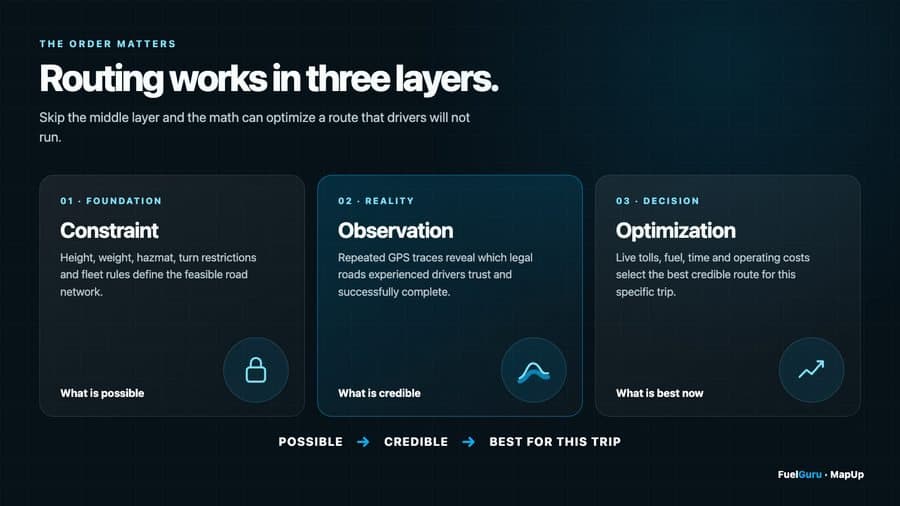
Who reads what: this page is for the fleet's operations lead and IT. Dispatchers get the Fleet and dispatcher guide; drivers get the Driver guide; everyone gets the FAQ.
1. Set up your fleet
Start with the way your operation actually works. NavGuru is configured per fleet account, and within it per vehicle profile and operating group, so a regional fleet, a dedicated account, a heavy-haul group and a local operation can each run their own routing policy, toll policy, fuel policy, alerts and restricted areas. Different parts of the same fleet do not have to operate under identical rules.
Two roles carry onboarding on the fleet side: one dispatcher and one operations owner. Give MapUp their names and emails plus the other dispatchers who need access, and they receive dashboard logins (access steps). If your organization manages several fleets, each fleet is its own account and the dashboard's account switcher (bottom left) moves between them.
2. Configure the truck
Commercial routing depends on the vehicle being routed. Every route request and every clearance, weight and hazmat alert is computed against the vehicle profile: type, height, width, length, gross weight, axle configuration, trailer configuration and hazmat class.
Do not assume the dimensions come from your ELD
Platform Science and other telematics feeds give NavGuru the vehicle ID, VIN, position, speed, engine data and fuel telemetry. They do not carry height, weight, length or hazmat status; each fleet stores those differently. Until the fleet's profile is set, a standard 5-axle profile is used, which can over-alert or under-alert for your equipment. Load the profiles before the first trip, and confirm during onboarding which system owns each attribute.
Format: one row per vehicle or per vehicle class; an export from your maintenance or telematics system is fine. Drivers confirm the profile before each trip and see its source and version; NavGuru asks again when it detects a trailer swap.
3. Define how your fleet routes
A fleet route is more than the shortest legal path. The policy the fleet sets once decides what the driver sees on every trip:
- Route lock: hard (the driver follows the dispatched route; departures are rerouted back and scored) or soft (the driver can choose among truck-legal options).
- Toll policy by vehicle class and transponder, and practical against shortest routing.
- Preferred and avoided roads, fleet-approved corridors, via points and avoid zones, so the route reflects fleet operating policy as well as truck legality. Routes learned from the fleet's own GPS history feed the same preferences.
- Corridor deviation threshold (miles or percent), whether the driver sees a deviation chip, and whether a reason-code prompt appears at the next stop. Both off gives silent scoring: nothing shown, deviation still recorded.
- Alert lead distances per event type, within fleet bounds. Restriction alerts use the computed last-safe-exit timing rather than a fixed distance.
- Driver versus dispatcher control: whether drivers may add parking, truck stops and operational waypoints, and whether dispatch route changes are mandatory or optional.
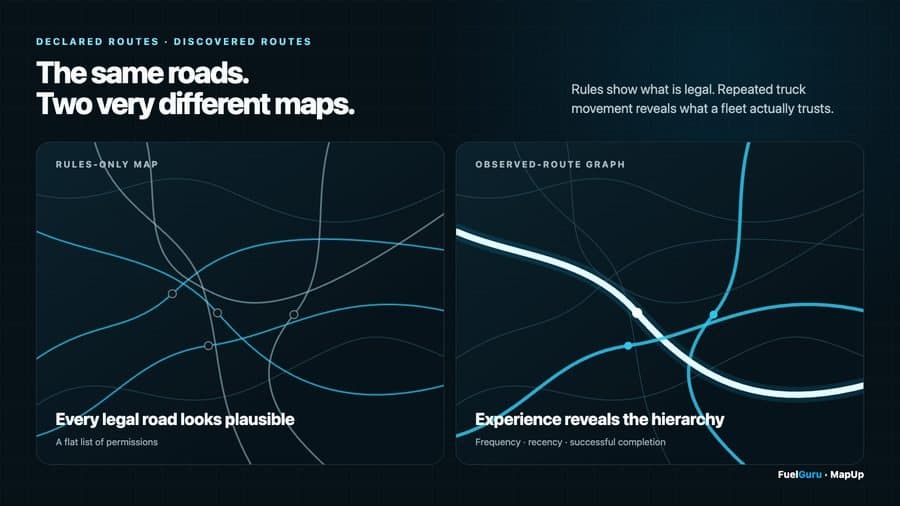
These are set in one configuration call with your MapUp contact and signed off in writing. Fleet mandates are locked so drivers cannot change them; conveniences (rest area markers, preferred brands, audio on informational alerts) can be left to the driver.
4. Connect the systems already running your operation
NavGuru sits between the systems that already run the fleet: TMS or dispatch, Platform Science, ELD and telematics, fuel card data and fuel price feeds, FuelGuru, fleet route files, geofences and POIs. The most important onboarding question is which system is the source of truth for each part of the trip. Settle it once and expected integration behavior is never mistaken for a navigation issue later.
| Part of the trip | Source of truth on Platform Science fleets | What that means |
|---|---|---|
| Dispatch creation, driver assignment, stop sequence | TMS through Platform Science Workflow | The job arrives in Workflow as it always has; NavGuru opens it from the Navigate button with stops in order. Dispatches can also be created in the NavGuru dashboard or sent by API. |
| Arrival and departure at a stop | Workflow (driver marks, or Workflow geofence) | NavGuru advances to the next stop when Workflow does, and never routes back to a completed or passed stop. |
| Trip cancellation and redispatch | Workflow | A changed job arrives as a new dispatch; a Platform Science dispatch cannot be edited once created. |
| Route changes while the truck is moving | NavGuru dashboard | Edit the route or stops against the Platform Science trip; the change is on the driver's screen in about two seconds. Platform Science does not push a change from Workflow into a running navigation session. |
| Vehicle identity, position, speed, engine data, fuel level | Platform Science SDK | Flows automatically into NavGuru and the dashboard. |
| Vehicle dimensions, weight, axles, hazmat | Fleet configuration in NavGuru | See section 2. |
| Hours of service | The ELD app on the tablet | NavGuru reads the driver's live remaining hours from the Platform Science ELD, plans rest stops from them under the federal rule, and shows the hours on the NavGuru screen. The ELD app remains the legal record. |
| Fuel prescription and compliance | FuelGuru, on the fleet's card program and network | See section 7. |
| Stop state inside the Workflow job | Workflow | The navigation app takes the job from Workflow and reports to its own back office; Workflow keeps the job record. Arrival and departure are marked in Workflow, and NavGuru follows them. That is the pattern Platform Science's own navigation uses on the same tablets. |
For trucks not on Platform Science, connect Geotab, Samsara, Motive or another supported feed by marketplace authorization or API credentials so the whole fleet appears in live monitoring and out-of-route reporting, not only the trucks running the app.
5. Platform Science deployment
NavGuru runs on the Platform Science tablet already in the cab; no separate navigation hardware. Workflow stays responsible for the driver's job; NavGuru is responsible for navigation, routing and the trip record.
The fleet asks Platform Science to enable NavGuru on its units
Platform Science sends the fleet its data agreement; the fleet approves; Platform Science publishes NavGuru into the fleet's environment.
The fleet's Platform Science administrator deploys it
To a configuration group of tablets, per Platform Science's deployment instructions. Publishing into the environment is not the same as the app being on the tablet; this step is the fleet's.
Point the Navigate button at NavGuru
Three configuration changes: NavGuru in the status bar availability list, NavGuru as the navigation app with wheels-in-motion enabled, and the Workflow navigation deep link set to NavGuru. Step by step on Set up NavGuru on Platform Science.
Bench check on a parked truck
Open Application Manager and confirm NavGuru is installed; tap Navigate on a test stop and confirm NavGuru opens; confirm the truck appears in Live monitoring when it moves.
How the driver's day works after that: the job appears in Workflow, the driver opens the stop, taps Navigate, NavGuru opens the trip and handles navigation, and the dispatcher monitors the trip from the dashboard.
For Android devices outside Platform Science: install the NavGuru app from Google Play or push the APK through the fleet's device management. An iOS build is available through your MapUp account team for fleets that run iPads or iPhones in the cab.
6. Add your fleet knowledge
What the fleet knows in the back office becomes part of the driver's navigation. Supply it as a spreadsheet or CSV with a name, a type, a geometry or address, and the field you want shown in the driver's alert.
| Category | Examples | What the driver gets |
|---|---|---|
| Fleet locations | Terminals, shops, customer facilities, parking, maintenance, fuel locations | Shown as places along the route and in the Up Ahead rail; can be added as stops. |
| Customer site detail | Commercial entrance, gate, docks, check-in location, approach direction, yard rules, overnight parking status | Gate guidance one mile out with the prohibited road marked; an at-gate card with docks and check-in when stopped; a satellite arrival preview at low speed. |
| Operating rules | Avoid zones, no-go areas, yard speed limits, preferred and restricted roads | Restricted areas are rerouted around automatically; the yard limit is spoken on entry and shown until the truck leaves. |
| Alerts | Safety zones, speed-related zones, customer-specific alerts, geofence entry and exit | Staged on approach and at the boundary in the cab; entry and exit events logged; delivered to dispatch when an alert rule is configured. |
7. Set up FuelGuru with NavGuru
If FuelGuru is part of the deployment, configure it before the first long lane: tank capacity and expected MPG per vehicle, the fuel network and card program (WEX, EFS or Comdata rate file, delivered by SFTP one to four times daily under the fleet's card agreement), the discount structure, the fuel policy (reserve, full or partial fill, maximum out-of-route miles, disabled stops) and which fuel telemetry is available.
FuelGuru then prices every candidate stop on the fleet's own negotiated rate, the state price and tax spread and the detour cost, and NavGuru makes the prescribed stop part of the trip: station and gallons announced on route, fallback to the next in-network option if the stop is unavailable, and an escalation to the nearest in-network station if range falls below the route to the next fuel plus the reserve. After the trip, card transactions close the loop: prescribed against actual, per driver, per stop, per trip.
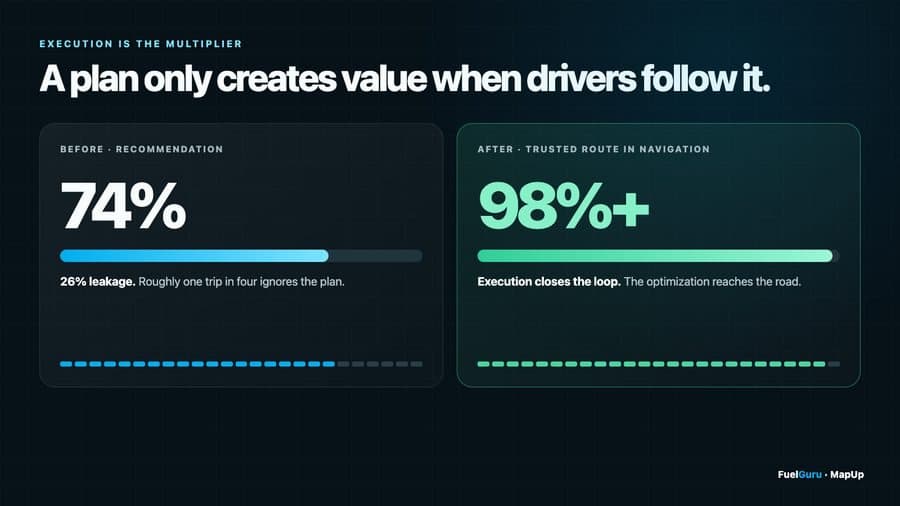
Without the fleet's rate file and network, a generic station list is used and prescriptions are not meaningful. A trip on a short lane, or one where no priced in-network station falls inside the out-of-route limit, correctly returns "no stop needed" with the reason.
8. The 10-business-day plan
Planning dates. A fleet that finishes a step early moves on.
Days 1 to 2: access and enablement
Dashboard accounts for the named dispatchers and operations owner. For Platform Science fleets, the enablement request and data agreement. For Android fleets, the app pushed to the pilot devices.
Days 3 to 5: configuration
Vehicle profiles loaded. Zones and places loaded and checked on the map. Routing policy, corridor threshold and alert lead distances configured and signed off. If FuelGuru is on, the rate file connection live and the network loaded.
Days 6 to 7: tablet deployment and bench check
Platform Science administrator deploys to the configuration group and sets the Navigate deep link. On a parked truck: NavGuru visible in Application Manager, Navigate opens NavGuru, a test dispatch appears on the tablet, the truck appears in Live monitoring.
Day 8: dispatcher session, 45 minutes
Creating and changing a dispatch, live monitoring, places and stops, route compliance and what the numbers mean, the weekly review. Content: the Fleet and dispatcher guide.
Days 9 to 10: driver briefings and the pilot drive
10 minutes per driver at the terminal with the Driver guide. Then the structured pilot in section 9. First weekly report on the following Monday.
10. Go live and the first eight weeks
Go-live is the acceptance checklist above plus two things: every dispatcher has logged in, and every enrolled driver has had the 10-minute briefing. Three habits then decide adoption.
- A weekly 30-minute review between the operations owner and MapUp on loads dispatched, loads navigated, route compliance, out-of-route miles, fuel compliance where FuelGuru is on, and the open issue list.
- One shared issue log with severity, owner and date. Driver items collected at the terminal are fixed within the release cycle; a build ships every two weeks.
- One app, one route on enrolled trucks. Fleets that prescribe NavGuru on enrolled trucks and measure adoption as loads navigated get a clean read on compliance and savings. Two navigation apps side by side with no policy measure preference, not the route.
Expanding from the pilot group to the whole fleet is configuration: add vehicles to the profiles, drivers to the briefing schedule, and tablets to the next configuration group.
11. Troubleshooting
Most first-week issues are configuration or tablet behavior and clear in a minute with the right step. Two checks on any dashboard problem: you are in the right fleet account (account switcher, bottom left), and the page has been hard-refreshed (Ctrl+Shift+R on Windows, Cmd+Shift+R on Mac).
| What you see | Likely cause | What to do |
|---|---|---|
| NavGuru is not on the Platform Science tablet; only another navigation app shows | Published into the fleet's environment but not yet deployed to this tablet's configuration group | Fleet Platform Science administrator deploys per Platform Science's instructions, confirms in Application Manager (Available tab, Refresh apps), then sets the Navigate deep link (steps). On a parked truck. |
| Navigate opens a different navigation app | Navigation deep link still points at the previous app | Update navigation_deeplink and nav_app_config per the setup page; confirm wheels-in-motion is enabled. |
| NavGuru closed while moving and cannot be reopened from Workflow | Platform Science safety lock on a moving tablet | Stop when safe; tap Navigate again or open NavGuru from the app list. The trip continues under a new session. |
| “This page hit an error” on a dashboard page | Stale browser cache after a release, or a long-running page session | Reload; if it repeats, hard refresh. If it persists after that, raise a ticket with the page name and time. |
| No vehicles in Live monitoring | No driver is navigating yet, or wrong fleet account | A vehicle appears once its driver starts NavGuru and the truck moves. Check the account switcher. |
| Portal dispatch not picked up by the driver | Tablet was moving; a new dispatch is accepted only when stopped | Wait for the next stop, or change the running trip instead. |
| Two trip records for one drive, one cancelled | The driver exited and relaunched the app | Nothing to fix; both sessions file under the same dispatch. |
| Live on-route 100% but post-trip adherence lower | Different reference routes: live measures against the active in-cab route, post-trip against the dispatched route | No defect. See the fleet guide. |
| Low-clearance alert for a structure taller than the truck | Vehicle on the default 5-axle profile | Set the profile under Fleet. The route itself does not cross restrictions lower than the configured truck; the alert list is what over-reports. |
| Low-clearance alert for a road the truck is not on | Alerts are scoped to the route; a structure on a parallel road should not appear | Report the location, direction and time so the restriction record can be checked. |
| Fuel level on the dashboard differs from the cab gauge | Raw engine fuel-sensor reading; moves several percent on curves and grades | Expected. FuelGuru smooths the series before using it. Report only a large, persistent difference on level road. |
| FuelGuru returned “no stop needed” when you expected a prescription | Range covers the leg plus reserve, or no priced in-network station inside the out-of-route limit | Correct. If the fleet's rate file or network is not loaded yet, load it. |
| Zones do not show, or the alert shows the wrong field | Zone file not yet ingested, or the display field not specified | Check the file has name, type and geometry, and say which field to display. |
| Hours of service not shown inside NavGuru | The ELD data permission has not been granted on the Platform Science side, or the app is out of date | Ask your Platform Science administrator to confirm the data agreement covers HOS, and update the app. The ELD app on the same tablet remains the legal record; NavGuru reads the remaining hours from it. |
| App behaves differently from this guide | The tablet is on an old build | Update through Platform Science application management or the app store. A build ships every two weeks; the release notes in the dashboard list what changed. |
12. Raising a ticket
Email navguru@mapup.ai or the shared channel your fleet was given at onboarding, with: fleet name (and account name if you manage several); vehicle ID, driver ID, and the trip or dispatch ID; date and time with the time zone and roughly where the truck was; what you expected, what you saw, and a screenshot or photo; the device (Platform Science tablet or Android) and the app version from the menu. A specific trip and location is investigated the same day; "the route was wrong" is not.
| Severity | Definition | Commitment |
|---|---|---|
| P0 | A routing safety issue, or the dispatch-to-cab channel or the dashboard down for the fleet | Worked immediately; fixed within five business days |
| P1 | A feature not working for some trips or users, with a workaround | Fixed within one sprint; a build ships every two weeks |
| P2 | Cosmetic, discoverability or usability | Prioritized in the weekly review; scheduled in the release plan |
| Question | How-to or configuration | Answered on the shared channel; added to the FAQ |
Every ticket goes on the fleet's shared issue log with a severity, an owner and a date. Enterprise agreements carry their own response-time terms and apply where stricter.