The short version
FuelGuru prescribes where each truck should fuel and how many gallons to buy, priced on your own negotiated card rate at that station, the state price and tax spread, the detour to get there, and the price file that will apply when the truck arrives. The prescription lands in the driver's navigation, the TMS trip plan or the in-cab surface you already run. After the trip, fuel card transactions are matched to the prescription and compliance is measured per driver, per stop, per trip. This page gets that loop set up, tests it in a real truck, and takes you through the first months.
What it takes from your side: three connections set up once at onboarding (telematics, your fuel card program, dispatch or TMS), the tank size and MPG of your trucks, your approved stop list and your fuel policy. What it does not take: new in-cab hardware, an implementation fee, or code written for one fleet. The technical connection takes days. Driver compliance ramps over three to four months as the stop shows up in navigation, and that ramp is where most of the saving comes from.
The setup path
Your lanes → Connections → Trucks → Network and prices → Fuel policy → Delivery → Validate in a truck → Go live
Who reads what: this page is for the fuel manager, the operations lead and IT. Fuel managers and dispatchers running the product day to day get the Fuel manager and dispatcher guide; finance and anyone signing off a savings number gets Compliance and savings; drivers get the fuel section of the NavGuru driver guide; everyone gets the FAQ.
1. Start with your own lanes
You do not need to deploy FuelGuru, or change a single driver's behavior, to find out whether the opportunity exists. Send three months of history and FuelGuru replays your top lanes: the prescribed route, stops and gallons against what actually happened, on your trucks, your prices and your network. The readout comes back roughly two weeks after a complete data drop.
| What we need | What it is | Format |
|---|---|---|
| Trip history | Origin, destination, intermediate stops, departure date and time, unit identifier; trip ID, total trip cost and ordered waypoints if you have them | One row per dispatched trip, three months |
| Vehicle specification | Tank capacity, reserve floor, fuel at trip start, fuel required at the end of the route, maximum out-of-route miles, out-of-route cost per mile, vehicle type, MPG; partial-fill penalty and full-fill policy if you have them | One row per unit in the study |
| Fuel purchase history | Date and time, unit, station name and location, gallons, price per gallon, total amount | From your card provider, same three months |
| Fuel price data | Station pricing by date for the routes in the study, with the pricing basis: contract, cost-plus or network discount | Your rate file or price sheet |
| GPS traces (recommended) | Position history for the study units. With it, the analysis reconstructs the path actually driven instead of assuming the direct route | Latitude, longitude, timestamp, same window |
What comes back: actual against prescribed fuel spend on the same gallons, route and toll economics, out-of-route miles, in-network usage, savings by lane, corridor and hub, and, with card data connected, driver adherence. The full data list and upload instructions are on the POC data requirements page. To try prescriptions by hand on any lane before sending data, ask fuelguru@mapup.ai for a login to the planning view.
Read the analysis with the right question
The lane analysis prices the same trucks, the same miles and the same gallons burned, and changes only which stop on your list each truck buys at, on which day, and how much. It is a stop-selection number. In-network compliance and prescription compliance are measured separately once FuelGuru is in the driver workflow. Compliance and savings explains each measurement.
2. Connect the three feeds
FuelGuru sits between three systems that already run your fleet. Each connection is established once at onboarding and then runs on its own. A fourth input is ours: licensed station-level price feeds, updated multiple times a day, so a stop that is not on your rate file is still priced.
| Connection | What flows | How it connects |
|---|---|---|
| Telematics and ELD | Live GPS, tank level, odometer and vehicle state. Fuel level flows where the provider's API exposes it | The same authorization used for the toll products. Platform Science, Geotab, Samsara, Motive and OEM feeds |
| Fuel card program | Your negotiated rate file (the price your card captures at each station) and transaction files for compliance | Delivered by SFTP one to four times daily under your card agreement. WEX and EFS, Comdata, Fleet One and AtoB |
| Dispatch and TMS | The trip in: origin, stops, appointment windows, driver and truck. The prescription back into the trip plan | TMS integration, Platform Science Workflow, or the FuelGuru API |
| MapUp price feed | Station-level retail prices across the US and Canada, refreshed several times a day | Ours. Nothing to set up |
The most useful onboarding conversation is which system is the source of truth for each input. The tank level comes from telematics; tank capacity and MPG come from you (telematics feeds do not carry them); the network and the rate come from the card program; the trip comes from dispatch. Settle that once and a stale input is never mistaken for a bad prescription later.
One-time at onboarding, over the same pipes
Historical GPS backfill for the lane analysis and, if you run an optimizer today, an export of its plan for the pilot baseline. Nothing else is needed from you for the connection to be live.
3. Configure the trucks
A prescription is computed for a specific truck. Every request carries tank capacity, expected MPG, the reserve you require at arrival, and the current fuel level read from telematics. A truck leaving with a 20 percent tank and the same truck leaving at 80 percent get different prescriptions on the same trip, and a truck with 300 gallons of capacity is planned differently from one with 150.
- Tank capacity and MPG per vehicle or per vehicle class. An export from your maintenance or telematics system is fine; one row per unit or per class.
- Reserve at arrival, as a percentage or in gallons. Tractor and reefer each carry their own.
- Reefer tank for refrigerated loads: capacity, current level and burn rate. FuelGuru treats it as a second tank on the trip, and each prescribed stop states tractor gallons and reefer gallons so both arrive with the required reserve.
- Fuel level source. Which telematics feed supplies it, and for trucks without a live level, the assumption to plan from.
The level moves; that is expected
The fuel level on the dashboard is the engine's fuel sensor read through your telematics platform. A float in a moving tank reads a wave, so the raw value moves by several percent on curves and grades. The chart shows the raw series; FuelGuru smooths it before a request uses it. Report only a large, persistent difference on level road.
If NavGuru is also deployed, the vehicle profile (type, dimensions, weight, axles, hazmat) lives in the same place and the truck is routed and fueled on one record. See the NavGuru setup guide.
4. Load your network and prices
FuelGuru prescribes among the stops your fleet already allows: your approved stop list, your own yards, and the stops your drivers already use. It does not pick a brand. It prices every stop on the list on the day, at your card rate at that brand, and prescribes the cheapest one the truck can reach inside your policy.
- Approved stop list. Brand, location and, where you have it, the contracted price basis. Multi-brand lists are normal.
- Yards and private fuel. Priced at your own yard cost per day, so a yard fill competes on the same basis as a truck stop.
- Rate file. The negotiated price your card captures at each station, from your card program. Without it, prescriptions run on posted prices and are not meaningful as a savings basis.
- Stops set back from the highway, penalized in the policy so a cheap sign never sends a truck two miles into town.
Every stop on the list carries a stop-feature score built from its public rating, satellite imagery of the lot, amenities and the traffic signal at the entrance, rolled into a risk category from Low to Very High. Stops rated High or Very High can be penalized or excluded in your policy so that a cheap price never sends a truck to a stop it cannot get in and out of. On top of that score sits your own fleet's history at the stop: how often drivers actually fuel there when sent. FuelGuru prescribes where that acceptance is high, because a stop that saves $3 on paper and gets skipped saves nothing.
5. Set your fuel policy
FuelGuru runs inside your policy. Set it once, per fleet account and, where you need it, per operating group, and it is applied to every prescription. Fleet mandates are locked so a driver cannot change them from the cab.
| Control | What it does | Typical setting |
|---|---|---|
| Minimum arrival reserve | Fuel the truck must have when it reaches the prescribed stop and the destination, tractor and reefer | A percentage of the tank or a gallon floor |
| Maximum out-of-route miles | The farthest a stop may sit from the route before it is excluded, priced against the saving inside that limit | Large fleets often cap this at two or three miles |
| Full fill or partial fill | Whether a stop may prescribe enough to reach a cheaper stop ahead, or must fill the tank | Partial allowed on long lanes; full fill where policy requires it |
| Minimum purchase | The smallest fill a prescription may state | A gallon floor |
| Preferred networks and hedged locations | Favored with a bonus in the pricing | Contracted or hedged stops |
| Stops set back from the highway | Penalized for the time and miles to reach them | On |
| Disabled stops | Excluded fleet-wide the moment a fuel manager flags them | Bad pump, access problem, contract change |
| Stop-feature risk | Whether High and Very High stops are penalized or excluded | Penalize; exclude Very High |
These are set in one configuration call with your MapUp contact and signed off in writing. Changing them later is a dashboard action, not a ticket.
6. Choose where the prescription lands
FuelGuru produces the decision. You decide which screen the driver sees it on. The driver should never have to reconcile two plans, so the fuel stop becomes part of the trip the driver is already following.
| Surface | What the driver sees | What closes the loop |
|---|---|---|
| NavGuru, on Platform Science tablets and the NavGuru app | The prescribed stop inside the turn-by-turn route, announced with station and gallons; fallback to the next in-network stop if it is unavailable; escalation to the nearest in-network station if range falls below the route to the next fuel plus reserve | Mid-trip re-prescription and live measurement in the same dashboard. The tightest loop |
| TMS trip plan | The stop and gallons on the trip sheet or in the dispatch message | Card transactions matched to the prescription after the trip |
| Third-party in-cab surface | The prescription rendered in the fleet's existing driver application through the FuelGuru API | Same measurement from card data; re-prescription where the surface sends position and tank level |
| API only | Your own application. Route options with drive time, vehicle-specific tolls, fleet-net fuel cost, prescribed stops and gallons, and total trip economics as structured data | API documentation |
Where NavGuru is the surface: FuelGuru decides. NavGuru executes. If the trip changes, the route and the fuel plan recompute together. The NavGuru setup guide has the FuelGuru with NavGuru steps and the tablet deployment.
7. The first two weeks
The target from approval to the first prescription in a cab is ten business days or less, and most of that is your own configuration. Compliance is not measured in that window; it ramps over the months that follow.
Days 1 to 2: connections
Telematics authorization confirmed and tank level arriving. Card program rate file and transaction file scheduled by SFTP. Dispatch or TMS trip feed agreed. Historical GPS backfilled for the lane analysis.
Days 3 to 5: configuration
Tank capacity, MPG and reserves loaded per truck. Approved stop list and yards loaded and checked on the fuel stops map. Rate file parsed and prices showing per stop. Fuel policy configured and signed off. Delivery surface chosen and, for NavGuru, the tablets in the right configuration group.
Days 6 to 8: validate in a truck
The pilot plan in section 8 on one or two trucks, on a lane long enough to need fuel.
Days 9 to 10: go live on the pilot group
Prescriptions on every eligible trip for the pilot trucks. Fuel manager reviewing the compliance views daily for the first two weeks, then weekly.
8. The pilot plan
A pilot is one truck, one dispatch team, a lane long enough to need fuel, the truck's real tank capacity and MPG in its profile, your network and prices loaded, and the prescription in the cab. Then the outcome from the GPS track and the card transaction. Keep four questions apart: does the prescription make sense, does it reach the driver, does the driver follow it, and can you see what happened afterwards. A requested future capability is not a defect in something the product already does.
| # | Test | How | Pass |
|---|---|---|---|
| 1 | A stop on a lane that needs fuel | Dispatch a trip whose length exceeds the range on board plus reserve. Real tank level, real network. | A prescription with station, arrival time and gallons inside the driver's route. The stop is on your list, inside the out-of-route limit, and the selected stop can be explained from your own price file and detour. |
| 2 | No stop needed | Dispatch a short trip with plenty of fuel on board. | FuelGuru returns no stop, with the reason (range covers the leg plus reserve, or no priced in-network station inside the out-of-route limit). No unnecessary stop is the correct result. |
| 3 | Starting fuel level changes the answer | In the planning view, run the same lane at a low, half and high tank. | The prescription moves: fuel sooner, a better stop becomes reachable, or no stop at all. |
| 4 | The trip changes mid-trip | Dispatcher adds a stop or changes the destination while the truck is moving. | A new prescription against the new trip from the truck's current position and tank level, delivered without restarting navigation. |
| 5 | Disable a stop | Block the prescribed stop in the fuel stops page while the truck is en route. | The stop drops out and every affected trip re-prescribes to the next best stop. Nobody has to call the driver. |
| 6 | Miss the stop | Where safe, drive past the prescribed station. | FuelGuru recalculates from where the truck is now: the best remaining prescription, not the old one. The miss is recorded and shows in compliance. |
| 7 | Close the loop | Fuel at the prescribed stop. Wait for the card transaction file. | The transaction is matched to the active prescription: right station, gallons within tolerance, price at prescription, at arrival and actually paid, side by side. |
| 8 | Read the compliance views | Open the fuel savings views for the pilot trucks. | Prescribed against actual per driver, per stop, per trip; gallons in and out of network; the truck's day timeline and map. |
Classify what you find. An optimization finding (the stop chosen was wrong on your economics), an input-data finding (price, network, tank or MPG wrong or missing), an integration finding (the prescription existed and did not reach the surface), a configuration finding (policy or stop setup needs a change), a driver-execution finding (available and not followed), or a measurement finding (card, GPS or telemetry data incomplete). Keeping them apart is what makes the pilot readout useful; most first-week findings are input data or configuration and clear the same day.
Acceptance. Network and yards loaded and checked on the map. Rate file parsed, prices per stop current. Tank, MPG and reserves per truck. Tank level arriving and smoothed. A prescription in the cab on a real dispatch. No stop returned when none is needed. Re-prescription on a trip change, a blocked stop and a missed stop. One card transaction matched. In-network and prescribed-against-actual visible in the dashboard. The savings basis agreed in writing before the number is quoted.
9. The first four months
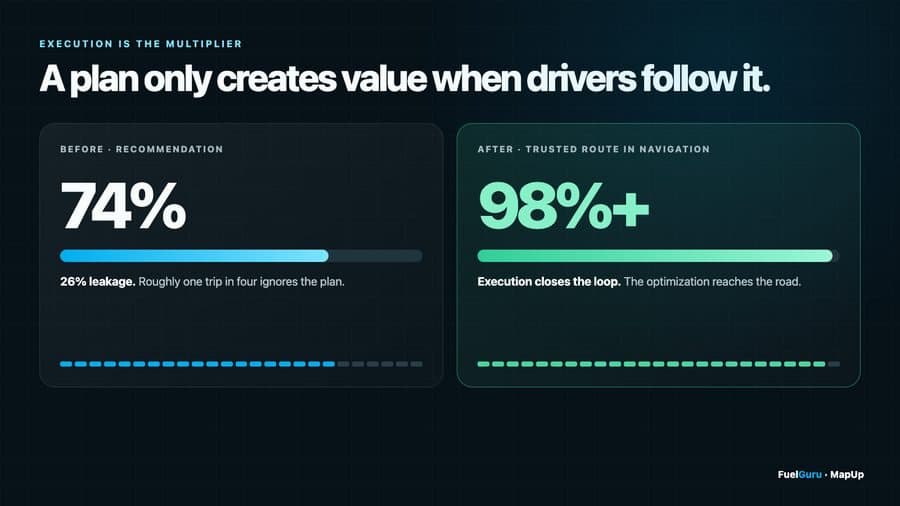
Go-live is not the finish. The published result at a 2,500 plus truck dedicated carrier is 74 percent to above 98 percent prescription compliance within four months, and that curve is produced by a loop, not by the software alone. Once the next approved stop and the gallons to buy are in front of the driver at dispatch, the reason to stop at the first pump on the road goes away. Off-network fills are flagged the same day and feed the driver scorecard the fleet reviews with its drivers.
- A weekly 30-minute review between the fuel manager and MapUp on gallons in and out of network, prescription compliance per driver and per stop, cents per gallon captured, dollars saved this week and to date, and the open issue list.
- A weekly savings email to your operations and finance sponsors with the same numbers, every one from production data, and what the whole fleet would save at 50, 75 and 100 percent of eligible loads on your own lane mix.
- Driver items ship within the sprint. A build ships every two weeks; the three most-raised driver items and what shipped for them are in the weekly email.
- Expanding from the pilot group is configuration: trucks added to the profiles, drivers to the briefing, tablets to the next configuration group.
10. Troubleshooting
Most first-week issues are input data or configuration and clear in a minute with the right step. Two checks on any dashboard problem: you are in the right fleet account (account switcher, bottom left), and the page has been hard-refreshed (Ctrl+Shift+R on Windows, Cmd+Shift+R on Mac).
| What you see | Likely cause | What to do |
|---|---|---|
| FuelGuru returned "no stop needed" when you expected a prescription | Range covers the leg plus reserve, or no priced in-network station inside the out-of-route limit for this trip | Correct. Check the reason on the request. On a short urban lane with a tight out-of-route limit, no stop is the normal result. |
| Prescriptions show generic stations, not your network | The fleet's stop list and rate file are not loaded yet; the account is on the generic station list | Send the approved stop list and the rate file. Prescriptions on posted prices are for evaluating the flow, not for a savings basis. |
| Prices per stop look stale or all the same | The rate file did not load for a day and the last available day's prices were carried forward | Check the SFTP delivery. Carried-forward prices remove the day-to-day movement FuelGuru trades on; the savings view flags the affected days. |
| Fuel level on the dashboard differs from the cab gauge | Raw engine fuel-sensor reading; moves several percent on curves and grades | Expected. FuelGuru smooths the series before using it. Report only a large, persistent difference on level road. |
| A prescription used a fuel level that does not match the chart | The request was made at a different time from the chart point you are reading, or the truck's telematics did not send a level for that request | Open the trip and compare the raw series with the value each request used; both are on the session view. |
| The fuel cost on a trip looks far too small | You are reading the cost card for one leg after a reroute, not the trip | The trip view shows a card per leg and a total. |
| The prescribed stop shows as blocked | A fuel manager disabled it after the prescription was made | Nothing to fix; affected trips re-prescribe. If it should be active, change its status on the fuel stops page. |
| The prescription is in the dashboard but not in the cab | The delivery surface is not receiving it: NavGuru not on the tablet, the TMS integration not enabled, or the trip did not originate from dispatch | For NavGuru, follow the NavGuru setup guide. For TMS delivery, confirm the trip ID is on the request. A hand-typed destination in the app has no dispatch to attach to. |
| A receipt is flagged as not fitting the truck | The receipt was recorded while the truck's GPS was elsewhere, or for more gallons than the tank had room for | Open the row: it shows the receipt fields, the GPS pings or the fuel level arithmetic behind the flag. Usually a mislabeled unit on the card, a driver fueling another truck, or a larger tank than configured. See Compliance and savings. |
| The same trip shows two prescriptions | The prescription was revised mid-trip after a route change, a blocked stop or a tank level drift | Both versions are kept. Compliance is measured against the version active at the time of purchase. |
| Lost access to the planning view or dashboard | Login expired or the user was not added to the fleet organization | Write to fuelguru@mapup.ai with the user's email; access is restored the same business day. |
11. Raising a ticket
Email fuelguru@mapup.ai or the shared channel your fleet was given at onboarding, with: fleet name (and account name if you manage several); vehicle ID, driver ID and the trip or dispatch ID; the approximate time and time zone; the starting fuel level, the prescribed station and gallons, and the stop you expected instead; the relevant policy setting and the price you know, if any; and a screenshot. A specific trip and stop is reconstructed the same day; "the prescription was wrong" is not.
| Severity | Definition | Commitment |
|---|---|---|
| P0 | Prescriptions not being produced or delivered for the fleet, or the dashboard down | Worked immediately; fixed within five business days |
| P1 | A feature not working for some trips or users, with a workaround | Fixed within one sprint; a build ships every two weeks |
| P2 | Cosmetic, discoverability or usability | Prioritized in the weekly review; scheduled in the release plan |
| Question | How-to, configuration, or how a number was computed | Answered on the shared channel; added to the FAQ |
Every ticket goes on the fleet's shared issue log with a severity, an owner and a date. Enterprise agreements carry their own response-time terms and apply where stricter.